New to Dreamwork? Start here
Get to know your dashboard, apply to matches, set up Autopilot, and manage recruiter replies.
Step by step
- 1Open your Dashboard to see recommended roles and your live applications in one place.
- 2Check the match score, salary, and location on each recommendation. Click Apply on a role you want to pursue, or Skip to move past it.
- 3Open Settings and choose how your Apply button works: "One tap submit" sends the application, while "Review first" lets you check it before sending.
- 4Choose whether Dreamwork writes a tailored resume and cover letter for each job in Application settings.
- 5Follow progress in Live applications. Open an application to review its details and materials, and use Send now when you are ready to submit a prepared application.
- 6To use Autopilot, set your minimum match score and optional minimum salary requirement, then choose any companies, places, or job levels to skip.
- 7Turn on Autopilot when you are ready for it to apply on your behalf. Autopilot sends on its own, even when your Apply button is set to Review first; pause it whenever you need to.
- 8Open Messages to read application confirmations and recruiter replies, and continue the conversation from Dreamwork.
Transcript
From the video's YouTube captions, lightly edited for punctuation and filler words. Uploaded to YouTube on October 25, 2026.
0:01 Hey everybody, my name's Colin and I'm going to give you a quick walk through of the Dreamwork platform. Now, really high level, there are three things that we do for you. The first one is we source the job. So you drop your resume in, we do a bunch of vectorized matching. Don't worry about how it works on the back end, but it's a hyper-efficient way to find the absolute best jobs for you.
0:18 There are no promoted jobs, there are no advertised jobs. It's literally just what the best match is for you based off of your history, your skill set, your level, all kinds of good stuff like that. Then once we have the matches and you decide you want to apply to that job, we create a custom cover letter for you. We create a custom resume that uses the keywords that you would expect to have in that resume to make sure that recruiters actually look at your submission.
0:44 And we complete that entire package for you effectively. And then the third thing that we do is we send it on your behalf. So we actually have an agent that can go and submit directly to the company websites or the ATS and career websites for these companies. There's no intermediary. It's not like Easy Apply on LinkedIn that like fails half the time. It actually goes directly to the employer.
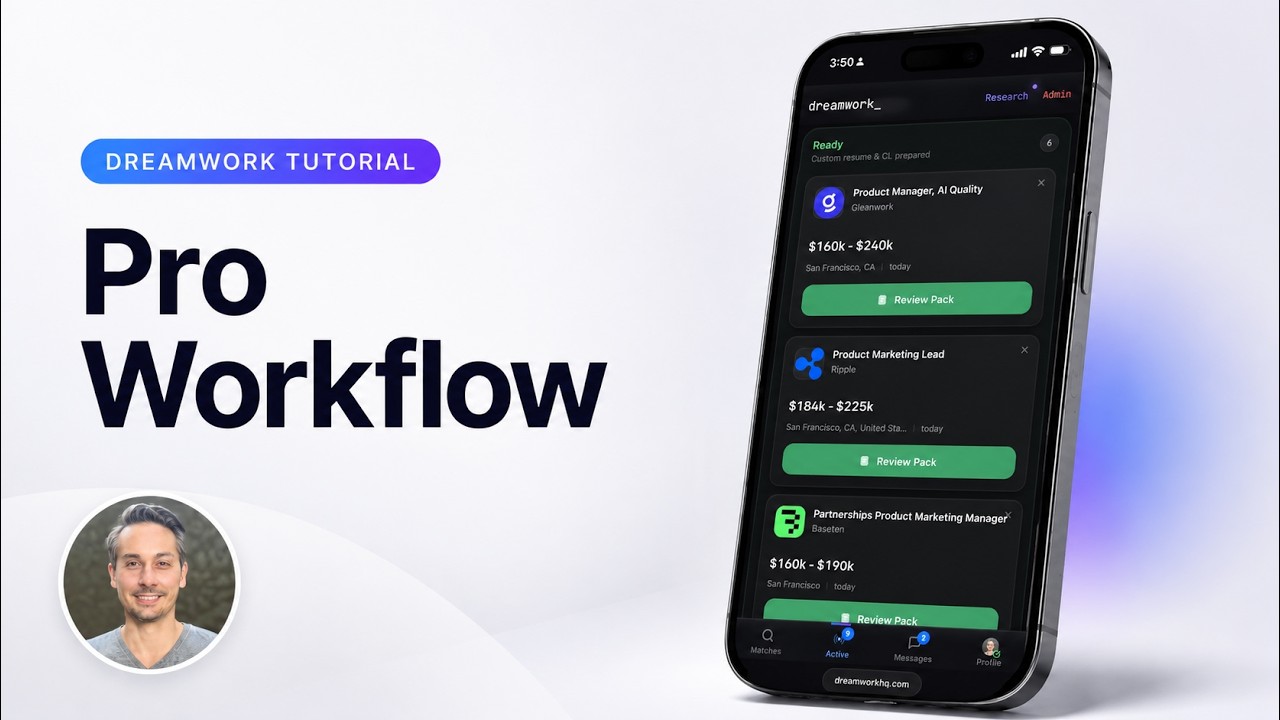
1:05 So those are the three things that we do for you. And then there are a few different ways that you can actually engage with the product to get those things done. Some are a little bit more manual and some are a bit more automated. So I'm showing you the dashboard right now. And we'll just walk through this piece by piece, right? So at the top, once you're done with onboarding, obviously this is a test account and it's already done with onboarding.
1:26 Once you're done, we're going to recommend matches for you at the top of your dashboard page, right? So there's five of them there. As soon as you decide, okay, this is a job that I like. And by the way, you can just tap on one of them and you can see the job description pop up here on the right side, right? You can check the salary, you can check location, all the details of the job.
1:44 You can go down the line here and figure out which ones look appealing to you. And then once you've decided, right? So let's say MovableInk looks interesting to me. I'm going to go ahead and hit the apply button. And what that's going to do is it's going to start preparing the pack. So, you can see that takes about 45 seconds to generate the resume and the cover letter, much shorter than editing it yourself right on the fly.
2:04 And we have some hyper-specialized prompts that do this, by the way, all right? So, we've done a ton of evals, thousands of evals, to check on cover letter quality, believability, making it sound like it's you. You can actually go into your preferences here and add your own writing so that the voice sounds just like your own voice. And same goes for the resume, right? We've done a ton of evals there, too.
2:29 You can see that the pack is now ready for Movable Ink, right? So, if I want to, I can open up that pack. And I can look at the resume and the cover letter, and then the job description, and then we also have this who to contact feature, which lets you figure out who the hiring manager is. It's not 100% accurate just because you can't always find the exact hiring manager, but to the extent that the internet is able to find that person, we'll find them for you.
2:53 And then you can see here I have it set so that it's just automatically applying. So, once the pack is generated, it's going to go ahead and apply to that job at Movable Ink. And it can take a few minutes to do this. If you want to review everything before it gets sent out, right? Which a lot of people do, you can go to the settings here, and this says your apply button, right?
3:13 I have it on One-tap submit. You can go ahead and tap on Review first. I'm not going to do it while one is mid-flight here, but Review first will make it just generate the pack for you so you can then review the pack and decide when you want to send it. And so, that's what you see with these other packs that I've got listed down here with the Send now button.
3:28 Those were done with the Review first setting on, okay? While we're in the settings here, you can also see Autopilot is another feature that we have, right? So, let's say you've gotten to the point where you kind of trust the platform, you trust the resumes, the cover letters, and you don't want to go through and review everyone anymore. Well, then you can just go ahead and turn on Autopilot here.
3:47 You just toggle this switch on, right? And once that's on, we'll start automatically sending applications out on your behalf, right? And you can see which ones are coming up next in the queue down below, right? And then you can just turn that off whenever you'd like to. You can do two per day with the standard Pro plan, and I think it's up to 10 per day with the Dreamer plan.
4:11 Okay, so you can see that the application flow has started on those two jobs while Autopilot is on. I'm going to go ahead and turn that off for now, just during this demo. I don't want to send too many applications out. But those jobs are just going to go and be sent for you over the next like 10 minutes, let's just say. And so that's how you do the sort of the dashboard page.
4:29 That's how you manage it. If we go now to the matches page, this is going to show you all of your matches, right? So, on the dashboard we're just showing you your sort of your top five recommended. Here on the matches page, I've got 389 different matches, right? So, I can go through and take the same actions here with apply. So, let's say I want to apply to this Google role, tap the apply button, right?
4:52 And that's going to show up down here in the bottom right. And then I can go back over to the dashboard view here, and I can see the Google job, right? And the pack is being prepared for me right now. Okay, and then with Autopilot, let's go back into the settings for a second here. You can change your minimum match, so it starts at 70% is kind of the default.
5:11 If you want more jobs to be submitted, you can scroll this down to like a 56% match, all the way down to 51%, and you see I have more eligible jobs to submit with Autopilot. You can also adjust to make sure that it only sends if the minimum salary that you declare is met, and you can edit that. You can skip different companies if you want to skip your existing company.
5:32 I think we do that by default, actually, but you can add any other companies you want to skip in here and locations and levels you want to skip. So, that's all in there.
5:42 By the way, Autopilot is getting a lot of our users a lot of jobs right now. I think it's like it gets those who turn it on get four times as many interviews as folks who don't turn it on. So, I would recommend turning it on as soon as you get comfortable. And then once you hear back, right, from these employers, so you can see their ones here that have the check mark.
6:01 Again, there's a bunch of test sort of submissions here, but the check mark means that it's been sent and confirmed sent to the employer. And then we have these reply to employer buttons. What those do is they bring up the messages tab. So, I'm just going to go over here. And you can see once the application has been submitted, we open up this messages tab where you can communicate back and forth with that company.
6:22 So, let's say like Minio here, you can see I've got some test communications. And what this is doing, by the way, is we've set up a private email address for you, right, that is dedicated just to job search. We use that to create accounts on the different ATSs and to send communications back and forth to the recruiters. So, they can see all of this in their inboxes and we're converting it into this messaging format.
6:46 And then you're also going to get those in those critical emails forwarded to you. So, if there is like an interview offer or rejection or anything like that, we'll actually forward the email to you as well as dropping it here into the chat. But this is the most convenient place to get back and forth to communicate back and forth with the recruiters. You can ignore this little banner for now.
7:10 And then if I go to my profile here, last thing, you can adjust job preferences. So, this is where you want to make sure everything is set exactly as you want it, right? So, your location, your if you want to work remote or you want to work on site, you can adjust that here. It's important that these are all accurate to you because they're going to impact the matches that you see because we just want to show you again the best jobs for you, right?
7:30 So, make sure that your job preferences are all accurately set. If you want your writing to sound like you, paste a writing sample in here, right? And then you can also add a small bit of notes for the writing for the writer. So if you want certain things to never be said or you want to make small adjustments to the prompt, you can do that here. So add your own writing and then make a small prompt adjustment and then you should start to see the cover letters sound a lot like the way you'd like them to.
7:57 There's a bunch of other settings I won't go through right now. You can kind of play around with them, but that is the high-level overview. And then we'll send communications to you as soon as the email or the interview offers come in. You should always check your messages tab as well, but that's it. Hopefully this is a useful intro video for you all. Reach out if you have any questions.
8:16 All of us founders are available. Me and Ben, my co-founder. And we're super excited to have you on the platform. Can't wait to get you hired, frankly. Bye.
More Dreamwork tutorials


Last updated November 10, 2026. All tutorials · Dreamwork home